WiFi Login issue in Windows 7
If you are having issues with new WiFi authentication method on Windows 7 follow these steps-
1. Go to Network and sharing center
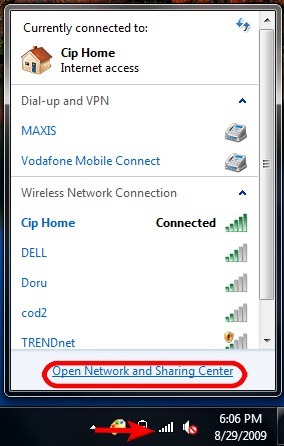
2. And from there select Manage wireless networks

2. You will see all the available Wireless networks and from them right click on PDG555 and select Remove network as shown:

3. Then go back to connections on the right hand side corner of your screen and check for available Wireless networks and select PDG555 and it will come up with a warning giving two options i.e Terminate or Connect. Click on Connect and you will be logged into WiFi. Here shown in screenshot

5. Still having issues then raise a ticket.
Related Articles
WiFi Login issue in Windows 10
If you are having issues with new WiFi authentication method on Windows 10 follow these steps: 1. Go to Network settings option as shown: 2. Click on Wifi option and select Manage known networks: 3. From the available Wireless networks select PDG555 ...Problems after Windows Update/ Internet not working/ No internet after restarting / WiFi Not working
Most of the times after the Windows update, the computer will be restarted automatically to finish installing the updates. After the reboot, some of your computer components/external devices such as mouse stops working. The reason is Failed Device ...How to share files using FTP?
Send new FTP user request to the IT dept. You need to provide the username and password (optional), folder name, access type (Read/Write/Delete) to the IT to set up a folder. 1. Open a Windows Explorer window; press Win+E. ...Create Email Signature Outlook Web App
Guide to Create Email Signature on OWA Prepared for PDG Guide to Create Email Signature on OWA Knowledge Base Prepared For: Popli Design Group PDG 06/12/2018 Revision and Signoff Sheet Change Record Date Author Version Change Reference 06/12/18 ...